Installation & Activation
This chapter mainly introduces how to install software and activate modules.
Installation
Installation package
The installation package contains 3 files, usually 2-3GB in size, as shown in the following figure.

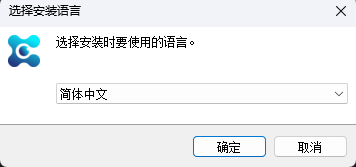
Select installation package language
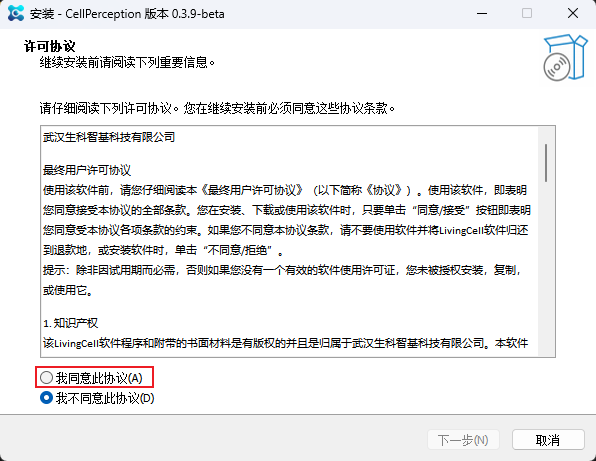
license agreement
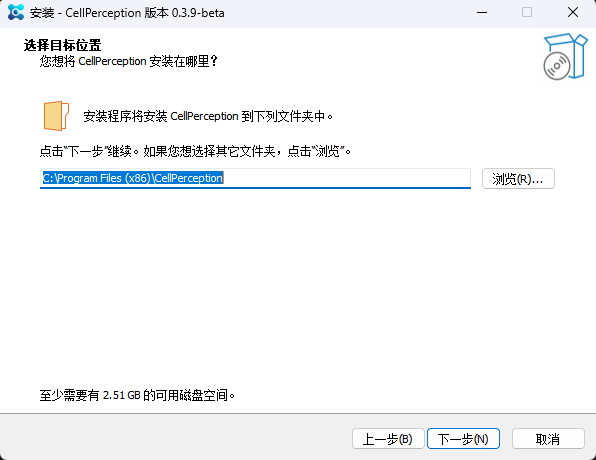
Installation Path
Recommended installation in English path, can be installed on other drive letters.
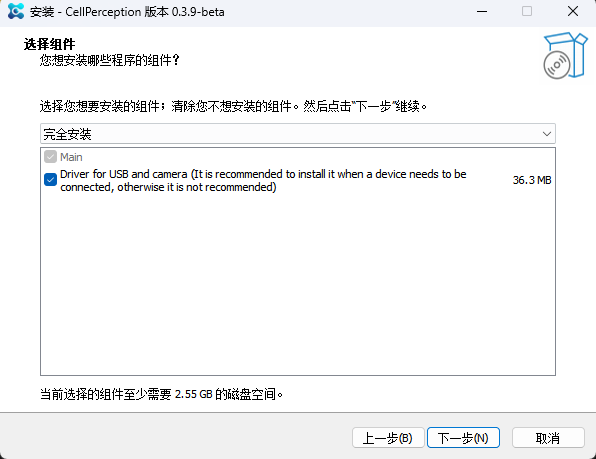
Component Selection
If a microscope device needs to be connected, the following driver components must be selected. Otherwise, there is no need to check the driver component.
Preparing for installation
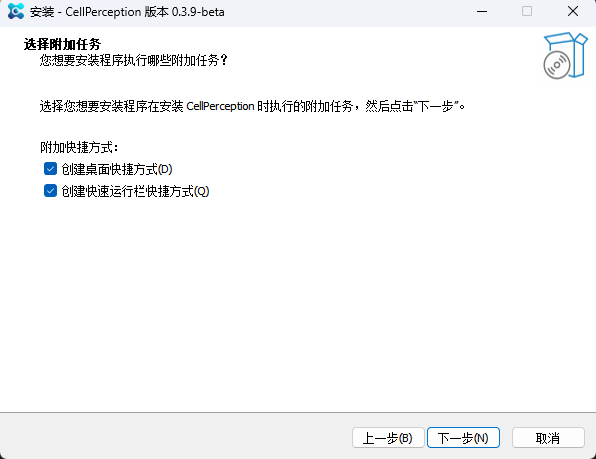
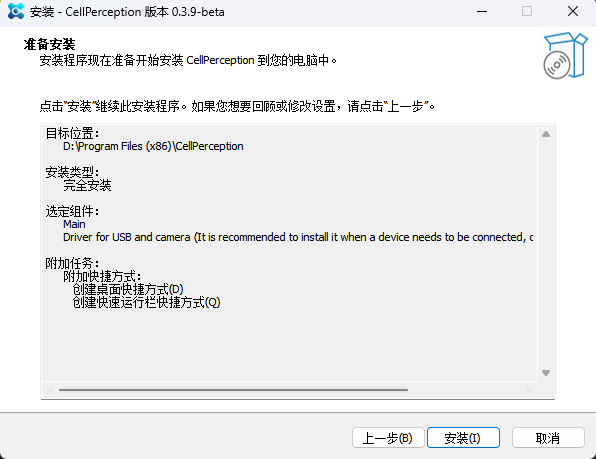
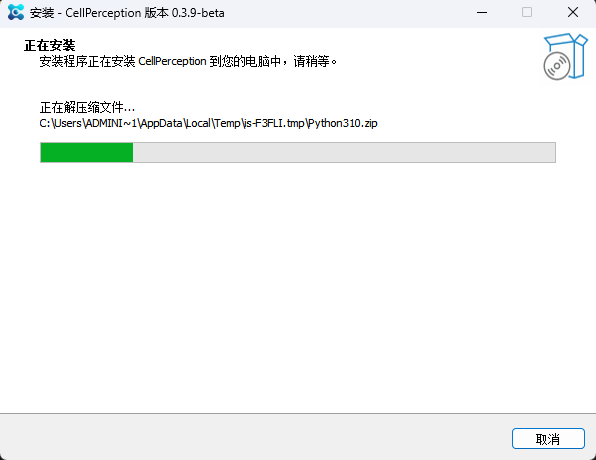
installation progress
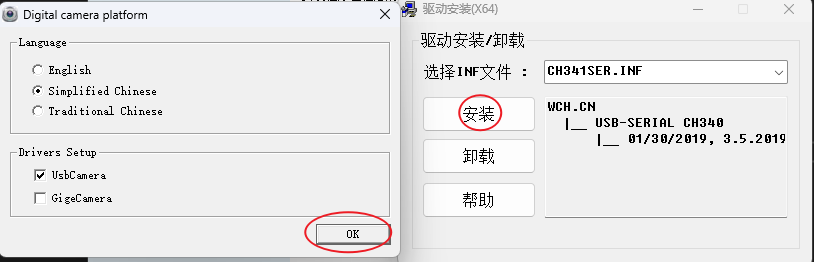
driver installation
If the driver component has been selected earlier, a dialog box related to driver installation will pop up during the installation process. Click on the red circle area below to complete the driver installation. If there is a prompt indicating installation failure, please contact the system supplier.
Installation completion
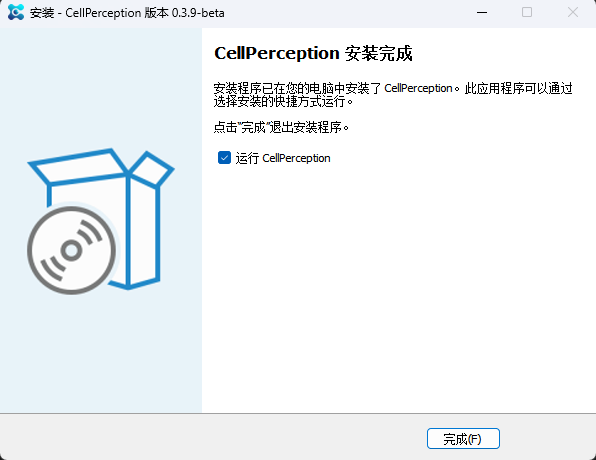
The installation process is now complete. Click Finish to enter the main interface of the software.
Module Activation
Newly installed software, by default, most modules are unusable, so an activation process is required before they can be used.
Some modules are free, while others are paid modules.
Online Activation
Suitable for online application when there is an internet connection.
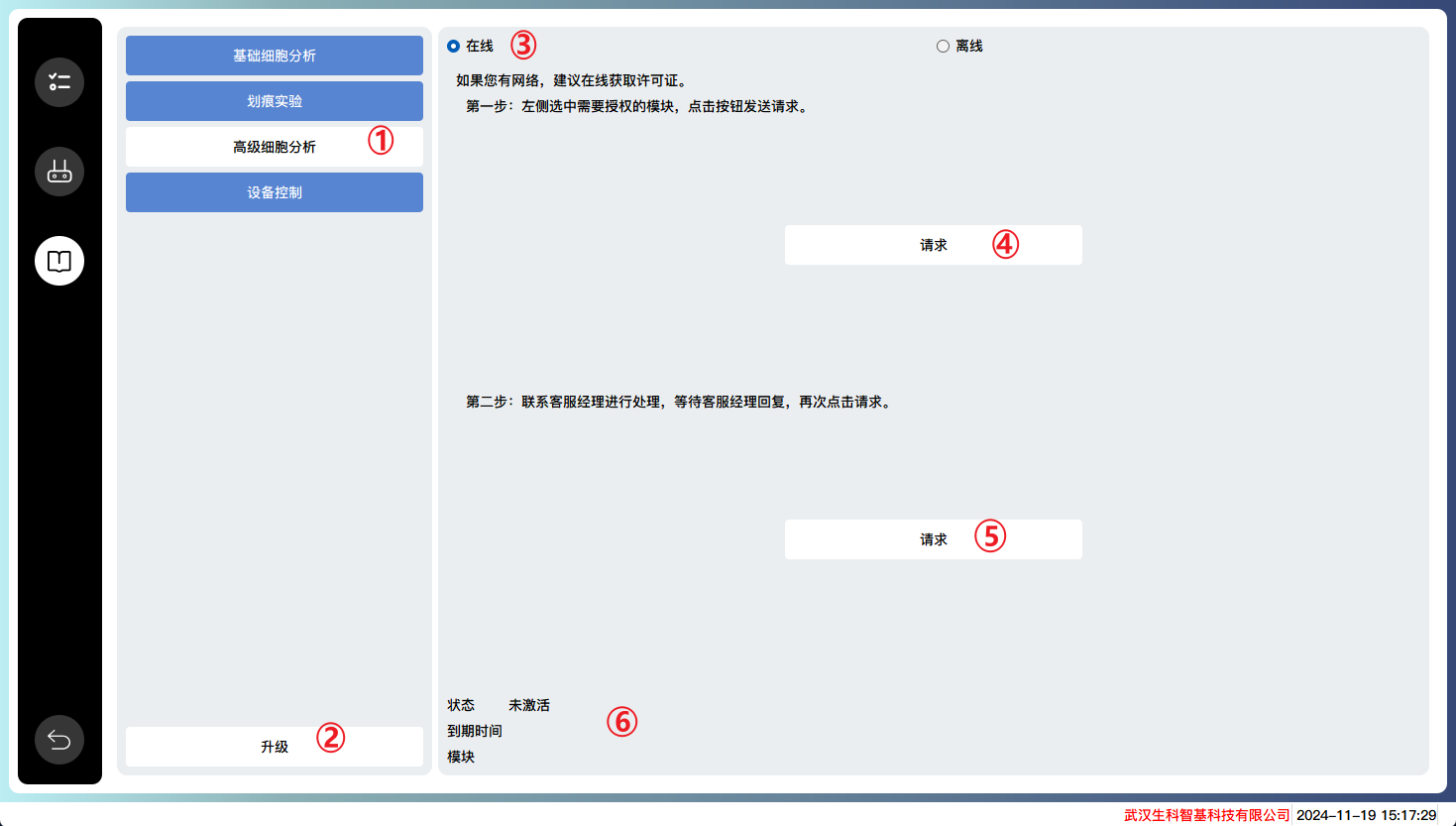
Select the modules that require authorization
Click to enter the upgrade page
Choose an online application method
Click on the request and contact customer experience for processing.
After waiting for the customer service manager’s reply, click on the request again.
Authorized modules, expiration dates, and other related information.
Offline Activation
Suitable for online application without internet connection.

Select the modules that require authorization
Click to enter the upgrade page
Choose offline application method
Click on export registration file and send the file to the account manager.
Wait for the customer service manager to reply with another activation code file, and click to import the file.
Authorized modules, expiration dates, and other related information.
upgrade installation
Download the latest version and simply overwrite the installation.
If the driver has been successfully installed before, there is no need to repeatedly install it. Simply close the driver installation dialog box.
The license does not need to be reactivated. By default, the previous license information will be loaded.